ChatGPT, Gradio, and Hugging Face Spaces

This is a small experiment in integrating ChatGPT / OpenAI GPT3 models into a Gradio application running on Hugging Face Spaces.
The most surprising part of this project is that 90% of the code was generated directly by OpenAI CODEX, demonstrating how AI can radically accelerate the development cycle.
Interactive Demo
Step 1: Code Generation with OpenAI CODEX
To generate the application skeleton, we used the code-davinci-002 engine with the following prompt:
# python3
# build a demo for OpenAI API and gradio
# define the "api_call_results" function for the gradio interface as a single text input (prompt).
# - Do not include any examples
# - live = False
# - for OpenAI API Completion method:
# - engine="text-davinci-003"
# - params: max_tokens, temperature and top_p
Observations on Generated Code
It is important to remember that AI is not always perfect. Some manual adjustments were necessary:
- Removal of obsolete parameters like
capture_session = True. - Adjustment of the launch function for server environments:
iface.launch(inline=False). - Management of the API Key via environment variables for enhanced security.
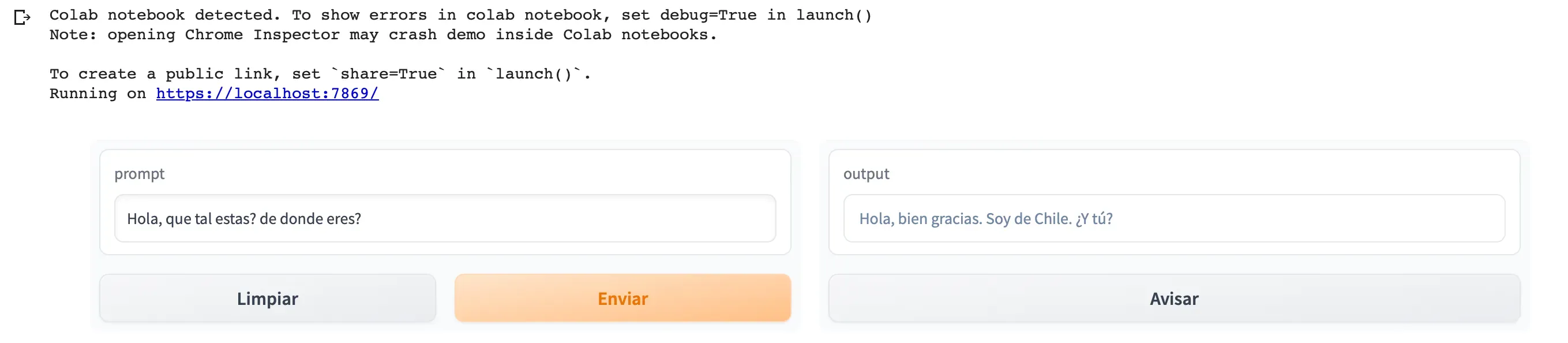
Step 2: Validation in Google Colab
Before deploying to production, we validated the functionality in Colab.
pip install gradio==3.15.0
pip install openai
If everything is correct, you’ll see an interface similar to this:
Step 3: Deployment on Hugging Face Spaces
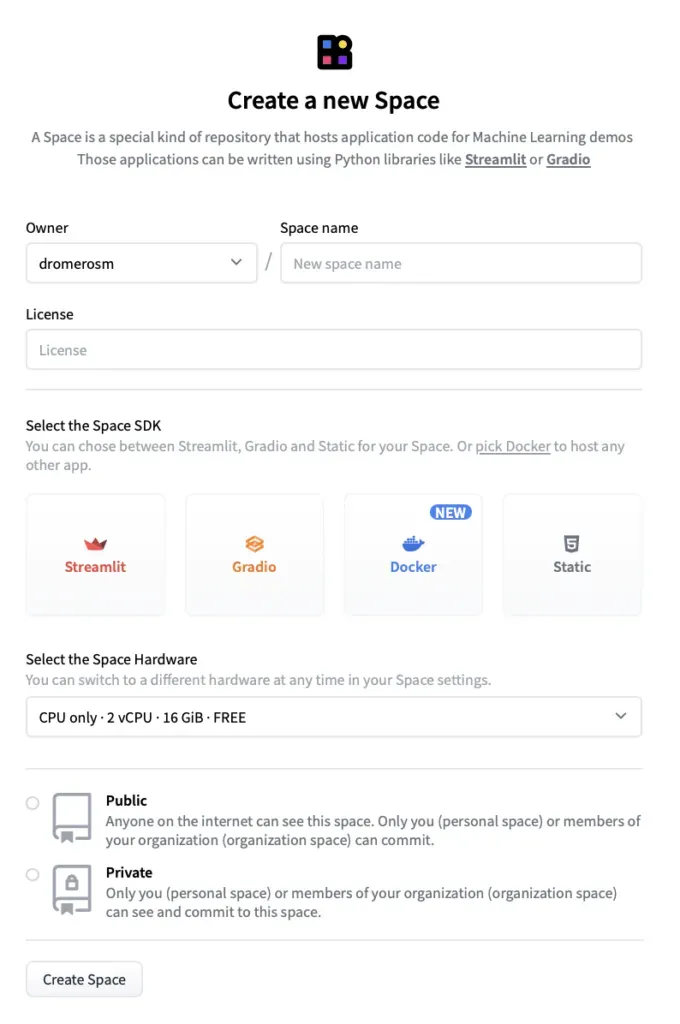
Hugging Face Spaces provides a persistent and free environment to host ML demos.
- Create the Space: Choose the Gradio SDK.
- Dependencies: Create a
requirements.txtwithopenaiandtransformers. - Security: Configure a Secret named
OPENAI_API_KEYin the Space settings. - Code: Upload your
app.py.
Step 4: Embedding in Your Website
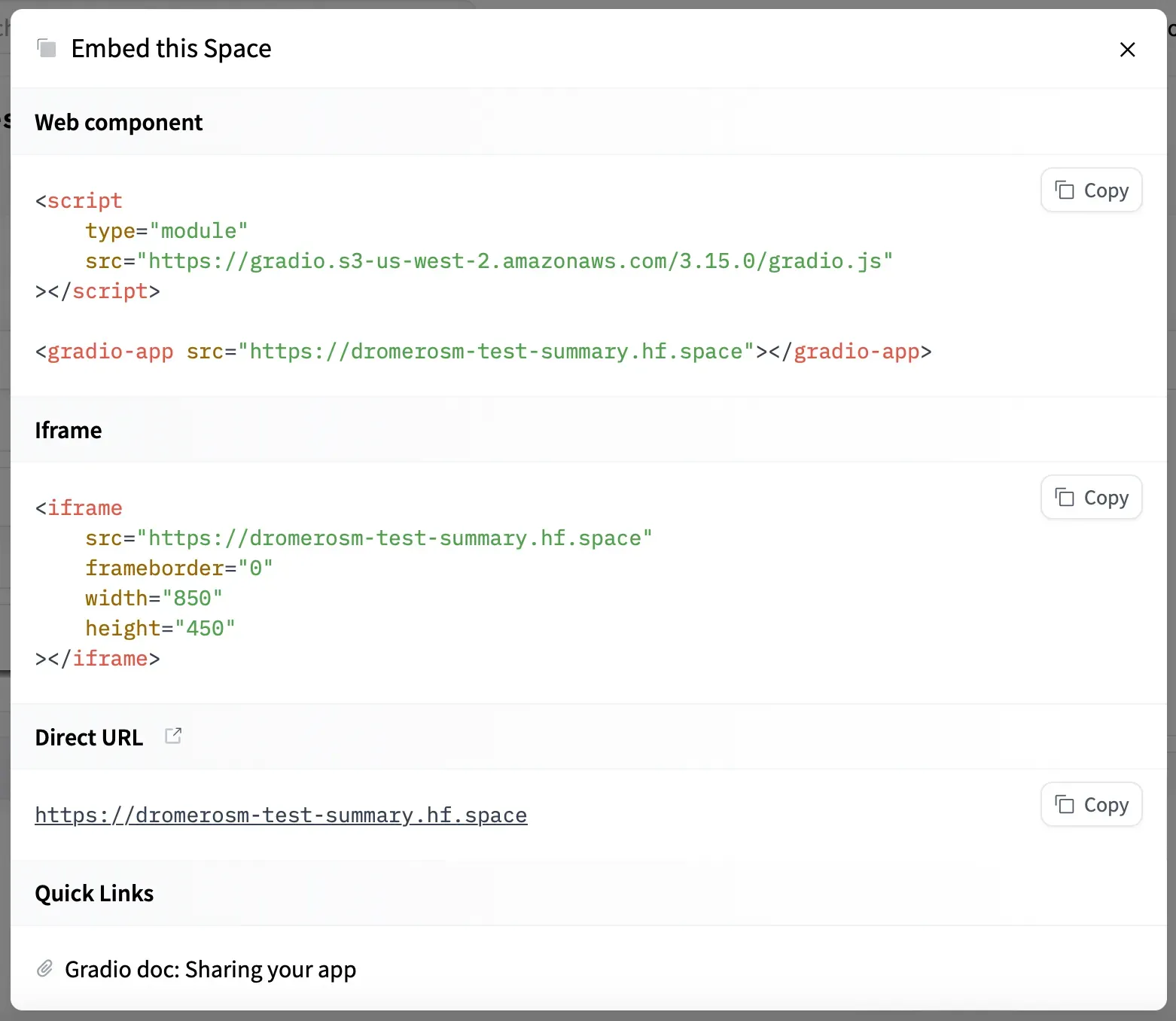
Hugging Face allows you to integrate the application in three ways: via Direct URL, Embed HTML, or iframe. For fluid integration in blogs, the iframe option is the most versatile.
Conclusions and Next Steps
This demo is just the beginning. Layers of complexity can be added, such as:
- Allowing the user to input their own API Key (masked as a password).
- Adding sliders to control the model’s “creativity” (temperature).
- Using LangChain to provide the agent with memory or access to external tools.
Staying curious is the best way to move forward in this ecosystem that changes every week.